![theorem-technologies-logo.png]](https://theorem.io/hs-fs/hubfs/branding/theorem-technologies-logo.png?height=40&name=theorem-technologies-logo.png)
Are you a new user of an existing commercial account? You can sign up this way, but the process will be delayed because your administrator will need to approve your sign in. Ask your administrator to invite you to the app for the best experience.
Did you get an email invite? See How to Register from Email Invite.
Prerequisites
You will need:
- A corporate email address
- An approved authenticator app
- A mobile device, browser extension, password manager, or other device that can generate authenticator codes
Step 1: Start the Sign Up Process
Go to https://beta.theorem.io and click the Sign up now link
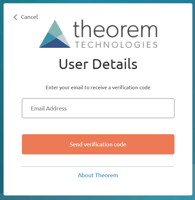 Step 2: Verify your email address
Enter your corporate email address. Theorem may block some users from registering from some non-corporate email services.
Press the Send verification code button to send a verification code to the email address you enter.
Step 3: Check your email
Open your email and find the confirmation code. The message may come from Microsoft on behalf of Theorem.
Return to the registration page and enter the code.
⊗ If you do not receive the code, see I did not receive my email confirmation code.
⊗ If your code does not work, see My email confirmation code is not working
Step 4: Create your account
Complete the registration form. Your password must meet minimum requirements and you will be alerted if it is not strong enough.
The following information is not required, but might be later required depending on your company policy:
- Given Name and Surname (first and last name)
- City that you are based from
Click the create button to create your account. You must complete the next steps to be able to login, but your account is immediately registered after pressing create.
Step 5: Set up multi-factor authentication
Theorem requires multi-factor authentication using an authenticator app. Common authenticator apps include Microsoft Authenticator, Google Authenticator, Authy, and 1Password.
Open your authenticator app and add a new account. Scan the QR code shown by Theorem, or type in the code if you cannot scan the QR code.
Don't have an authenticator app yet?
An authenticator app is required, but you can come back later without repeating the registration process.
Press the cancel link near the top of the registration window. When you have an authenticator app, log in to the app with the email address and password you registered with and you will be taken back to this page.
Step 6: Enter your authenticator code
Using your authenticator app, type the code into the verification form and press the verify button.
✔ The process is now complete and you will be taken into the free area of the app.
⊗ If you see a "Something went wrong" error, this usually indicates a problem with your account setup, not registration. See I get something went wrong after I login.
Step 7: (optional) Ask your administrator for approval.
If you part of an organization that already has an account with Theorem and want to be granted access, contact your company's administrator to ask them to permission your account.
Next Steps
- Explore the Products Page
- Set up a Data Pipeline
- Learn about the Data Viewer
- Convert to a Commercial Account